Emarsys#
The Emarsys integration allows Karla to provide your Emarsys account with triggers of any sort, like shipment notifications or claims.
Steps#
1. Open Emarsys & navigate to Administration#
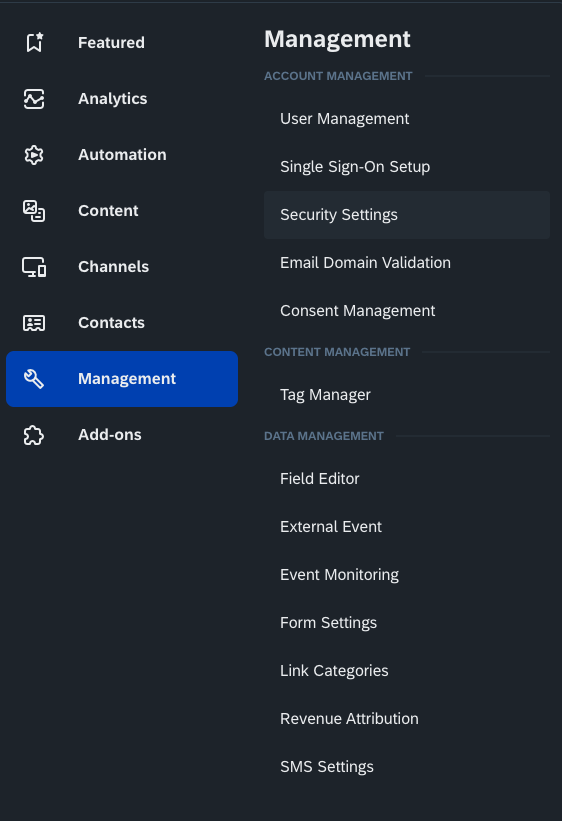
Navigate to your Emarsys instance and click on Management and Security Settings.
2. Access API Credentials#
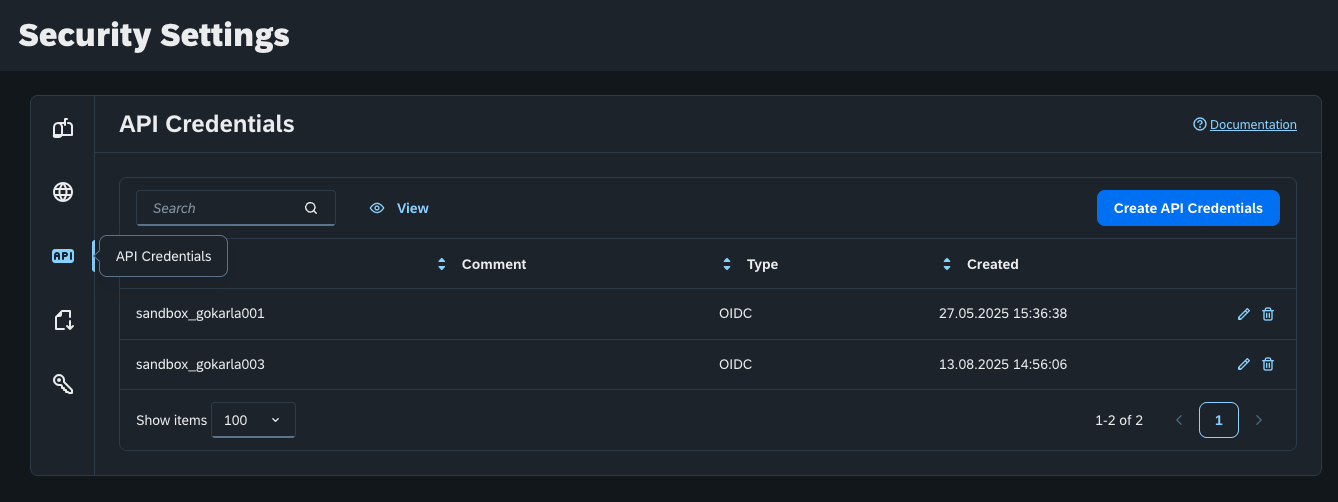
In Security Settings, select API Credentials to create new API access.
3. Generate API Credentials#
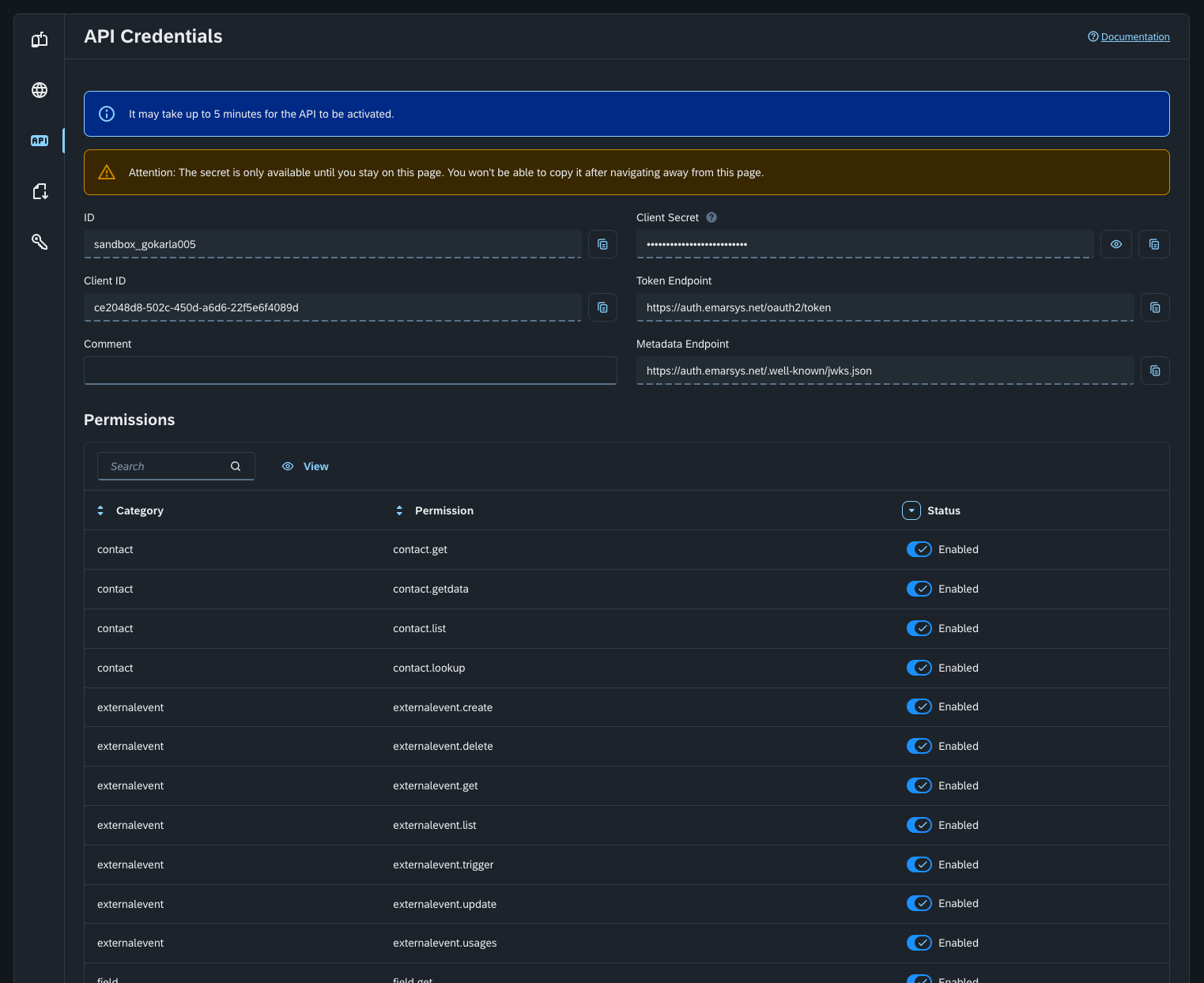
Click on Create API Credentials and select OpenID Connect.
Create new API credentials and configure the necessary permissions.
Core#
Permissions that enable the core notify functionality:
- Contact Management: create and update contact profiles
- Event Tracking: send custom events to your Emarsys account
- Email Campaigns: trigger automated email campaigns
These permissions are mandatory to have the minimum notification functionality working:
contact.create: will create contact emails if not existing in the systemcontact.getcontact.getdatacontact.listcontact.lookupexternalevent.create: will createkarla_*custom eventsexternalevent.deleteexternalevent.getexternalevent.listexternalevent.triggerexternalevent.updateexternalevent.usagesfield.getfield.listfield.multichoice.listfield.singlechoice.getfield.singlechoice.lang.listfield.singlechoice.trans.list
Campaigns#
Optional, only required to enable the following functionality:
- Segments: access segment data for targeted campaigns
- Contact Lists: access list of contacts for targeted campaigns
Enable the following in the permissions section for the API credential:
contactlist.contact.countcontactlist.contact.getcontactlist.contact.idscontactlist.contact.listcontactlist.contact.lookupcontactlist.contact.lookup.batchcontactlist.listcombinedsegment.getcombinedsegment.listcombinedsegment.test.getcombinedsegment.universal.getcombinedsegment.universal.listsegment.contact.countsegment.contact.listsegment.contact.lookupsegment.criteria.getsegment.getsegment.list
4. Set up the API Credentials#
Copy both the Client ID and Client Secret from the generated credentials.
In our portal, navigate to Settings > Integrations, and select Emarsys.
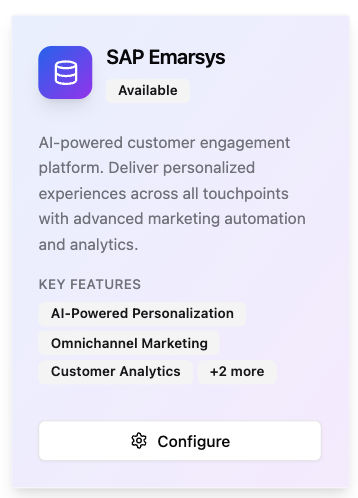
Paste the Client ID and Client Secret and click on Save.
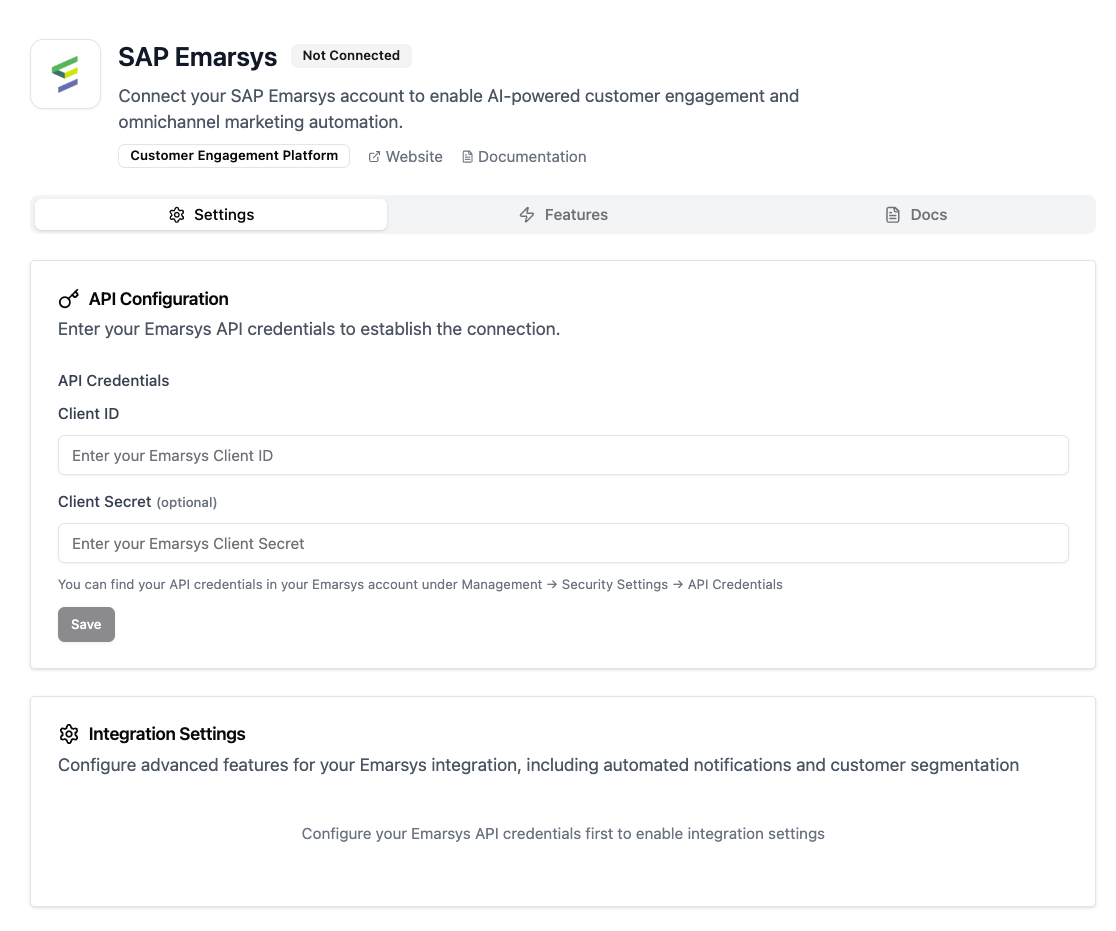
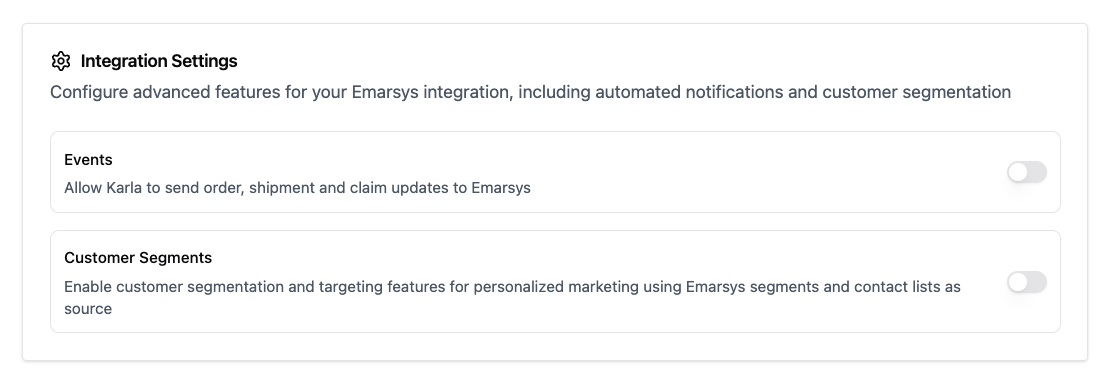
Once the key has been saved successfully, you can toggle the integration settings.
Building Emarsys Programs#
Our Emarsys integration will automatically create external event names prefixed with karla_.
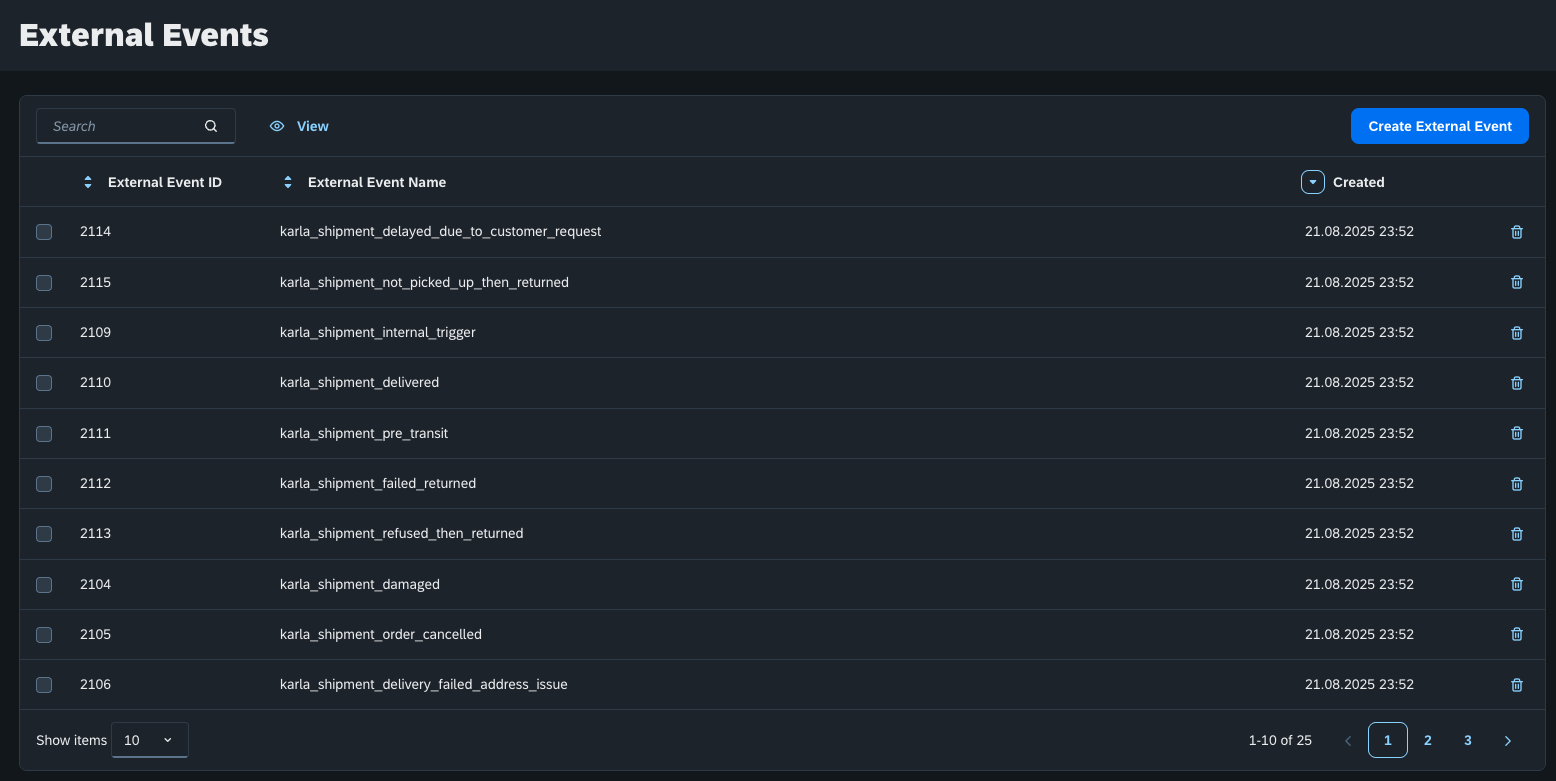 .
.
From there, you can create automation programs relying on these events to configure your own email flows.
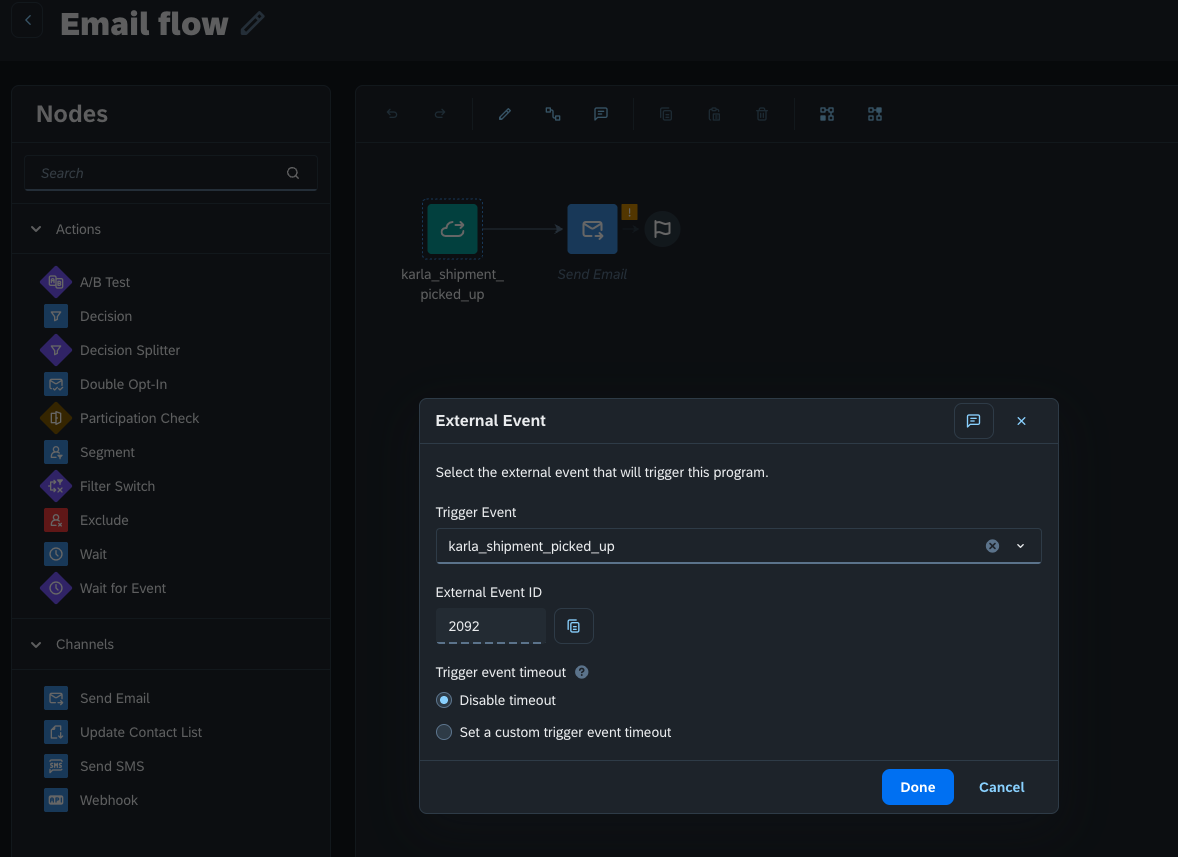
Pickup Reminder Program#
Create an automated program that triggers pickup reminders for packages delivered to parcel shops or lockers that haven't been collected within a specified timeframe.
Inserting the tracking page link#
To include the tracking page link in your Emarsys transactional emails you should use dynamic content with order_number and zip_code variables, so that your customers always receive their personalised link:
For emails triggered through Emarsys:
Karla events#
https://app.gokarla.io/track/slug?orderNumber=$order_number$&zipCode=$zip_code$&ref=karlahttps://yourshop.com/pages/tracking?orderNumber=$order_number$&zipCode=$zip_code$&ref=karlaShipping Confirmation#
Triggered by external events from your shop system.
https://app.gokarla.io/track/slug?orderNumber=$order_number$&zipCode=$shipping_zip$&ref=karlahttps://yourshop.com/pages/tracking?orderNumber=$order_number$&zipCode=$zip_code$&ref=karlaA slug is your unique identifier that represents your shop within the Karla system. This is used to properly route tracking information and ensure that shipment data is associated with the correct merchant account.
Testing the programs#
Once you've set up the programs and the respective emails it is important you make sure that the integration is working as expected.
In the Email Template Editor go to Preview & Test functionality.
There make sure that in the contact data you see the information from the profiles from your shop and not from Karla's test events. These should be infos like customer name, order number, shipping address etc.
You will see this information only after you have integrated your shop and Emarsys with Karla. More on shop integrations
If you want to see how your customers will receive the emails, you can send a test email to your email address.
Putting the programs live#
After you have tested your programs, you can put them live upon the agreed go-live date.
Make sure you have configured the proper sending settings and have disabled any frequency caps for transactional emails, so that all of your customers receive their shipping updates.
Event Groups#
Karla provides the following event groups to your Emarsys instance for building programs. These are business-friendly groupings that make it easier to create targeted campaigns without dealing with individual event names.
Event groups are specifically designed for Emarsys integration and are different from webhook ref patterns:
- Event Groups: Business-friendly names, prefixed by
karla_(e.g.,karla_shipment_delivered) - Webhook Refs: Technical identifiers (e.g.,
shipments/delivered/SUCCESSFULLY_DELIVERED)
For complete documentation of all events, ref patterns, and event groups, see: Events Reference
Recommended Program Priority#
High Priority (Essential programs):
karla_shipment_in_transit- Keep customers informedkarla_shipment_out_for_delivery- Delivery readinesskarla_shipment_delivered- Delivery confirmation
Template variables#
Tracking number: {{event.global.tracking_number}}
Tracking URL (Carrier URL): {{event.global.tracking_url}}
Order Number: {{event.global.order_number}}
Zip Code: {{event.global.zip_code}}
Carrier Name: {{event.global.carrier}}
Shipping Address: {{event.global.shipping_address}}
Pick up Address: {{event.global.pick_up_address}}
Pick up until Datum: {{event.global.pick_up_until}}
Neighbour Name: {{event.global.neighbour_name}}
Total Order Value: {{event.global.total_order_value}}
Order Currency: {{event.global.order_currency}}
Customer ID: {{event.global.external_customer_id}}
External Order ID: {{event.global.external_order_id}}
Preferred Delivery Date: {{event.global.preferred_delivery_date}}
Customer First Name: {{event.global.customer_first_name}}
Customer First Name: {{event.global.customer_last_name}}
Customer Country: {{event.global.customer_country}}