Brevo#
The Brevo integration allows Karla to provide your Brevo account with triggers of any sort, like shipment notifications or claims.
Steps#
1. Open Brevo & navigate to SMTP & API#
Navigate to your Brevo instance and click on SMTP & API in the main navigation.
2. Create API Key#
In the API Keys section, click on Generate a new API key to create new API access.
Name your API key "Karla Integration" and select the necessary permissions.
See Create and manage your Brevo API Keys.
3. Copy the API Key#
Copy the generated API key from Brevo.
In our portal, navigate to Settings > Integrations, look for Brevo.
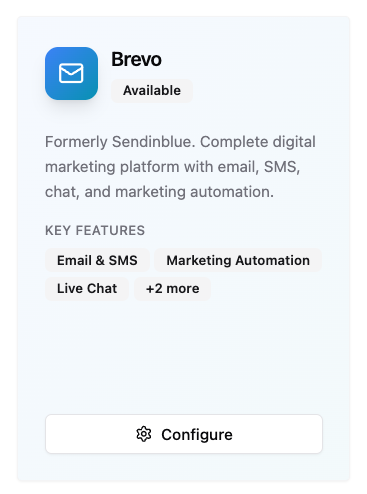
Paste the API key into the API Key field and click on Save.
Please contact our account manager if access to settings is not enabled for you in the portal. We can enable the setting for you.
Building Brevo Automations#
Our Brevo integration will automatically create custom events prefixed with karla_ for all delivery journey events.
From there, you can create automation workflows relying on these events to configure your own email flows.
Recommended Flow Priority#
To cover the most important delivery journey events, we recommend first creating automations for the following event groups:
karla_shipment_in_transitkarla_shipment_carrier_delaykarla_shipment_damagedkarla_shipment_out_for_deliverykarla_shipment_delivered_all_eventskarla_shipment_not_picked_up_then_returnedkarla_shipment_failed_returned
By creating these 7 automations you will be able to cover standard events happening for every order (karla_shipment_in_transit, karla_shipment_out_for_delivery), all delivered cases (karla_shipment_delivered_all_events) and the events that hopefully do not happen too often, but where it is most important to be proactive with your customers (karla_shipment_carrier_delay, karla_shipment_damaged, karla_shipment_not_picked_up_then_returned, karla_shipment_failed_returned).
Brevo uses namespaced event groups (like karla_shipment_delivered) while webhooks use ref patterns (like shipments/delivered/SUCCESSFULLY_DELIVERED). Event groups are business-friendly names that group multiple specific events for easier automation management.
For complete documentation, see: Events Reference →
Pickup Reminder Automation#
Create an automated workflow that triggers pickup reminders for packages delivered to parcel shops or lockers that haven't been collected within a specified timeframe.
Inserting the tracking page link#
To include the tracking page link in your Brevo transactional emails you should use dynamic content with order_number and zip_code variables, so that your customers always receive their personalised link:
For emails triggered through Brevo:
Karla events#
https://app.gokarla.io/track/slug?orderNumber={{ params.order_number }}&zipCode={{ params.zip_code }}&ref=karlahttps://yourshop.com/pages/tracking?orderNumber={{ params.order_number }}&zipCode={{ params.zip_code }}&ref=karlaShipment events also carry a ready-made, signed tracking page link in {{ params.trackpage_url }} that you can use as-is.
A slug is your unique identifier that represents your shop within the Karla system. This is used to properly route tracking information and ensure that shipment data is associated with the correct merchant account.
Karla sends each event's properties to Brevo as a single flat object, so every variable is read directly from params — for example {{ params.order_number }}. Paths such as {{ params.context.order.order_number }} or {{ params.event_data.order_number }} are not sent, so they stay empty. If your templates still use them, replace them with the flat names listed in Event properties.
Testing the automations#
Once you've set up the automations and the respective emails it is important you make sure that the integration is working as expected.
In the Email Template Editor go to Preview & Test functionality.
There make sure that in the contact data you see the information from the profiles from your shop and not from Karla's test events. These should be infos like customer name, order number, shipping address etc.
You will see this information only after you have integrated your shop and Brevo with Karla. More on shop integrations
If you want to see how your customers will receive the emails, you can send a test email to your email address.
Putting the automations live#
After you have tested your automations, you can put them live upon the agreed go-live date.
Make sure you have configured the proper sending settings and have disabled any frequency caps for transactional emails, so that all of your customers receive their shipping updates.
Event Groups#
Karla provides the following event groups to your Brevo instance for building automations. These are business-friendly groupings that make it easier to create targeted campaigns without dealing with individual event names.
Event groups are specifically designed for Brevo integration and are different from webhook ref patterns:
- Event Groups: Business-friendly names, prefixed by
karla_(e.g.,karla_shipment_delivered) - Webhook Refs: Technical identifiers (e.g.,
shipments/delivered/SUCCESSFULLY_DELIVERED)
For complete documentation of all events, ref patterns, and event groups, see: Events Reference →
The event group (without the karla_ prefix) is also available in the event_group variable {{ params.event_group }}. For claim events it reads claim_created or claim_updated, and on karla_shipment_delivered_all_events it holds the specific delivery group (for example shipment_delivered_to_neighbour).
Claims#
For any processed claim (e.g. damaged package, package not found...). See Claims.
karla_createdkarla_updated
Claim events do not carry the shipment_-style group name that shipment
events do — they arrive in Brevo as karla_created and karla_updated. Build
your claim automations on those two names.
Shipments#
For any processed shipment update:
| Event Group | Description | Use Case |
|---|---|---|
karla_shipment_pre_transit | Package prepared for shipping | Confirmation emails |
karla_shipment_in_transit | Package moving through network | Journey updates |
karla_shipment_carrier_delay | Carrier-reported delays | Proactive communication |
karla_shipment_damaged | Package damage reported | Customer service outreach |
karla_shipment_out_for_delivery | Package out for delivery | Delivery notifications |
karla_shipment_delivered | Successful delivery | Delivery confirmations |
karla_shipment_delivered_all_events | All delivery variations | Comprehensive delivery flows |
karla_shipment_delivered_to_letterbox | Delivered to letterbox | Specific delivery method |
karla_shipment_delivered_to_neighbour | Delivered to neighbor | Neighbor delivery notification |
karla_shipment_delivered_to_parcel_locker | Delivered to parcel locker | Pickup instructions |
karla_shipment_delivered_to_parcel_shop | Delivered to pickup point | Pickup notifications |
karla_shipment_delivery_failed | Delivery attempt failed | Retry communications |
karla_shipment_delivery_failed_address_issue | Address problems | Address correction requests |
karla_shipment_delivery_failed_forwarded_to_parcel_shop | Forwarded to pickup | Alternative pickup location |
karla_shipment_delivery_second_attempt | Reattempting delivery | Second attempt notifications |
karla_shipment_not_picked_up_then_returned | Not picked up, returned | Return notifications |
karla_shipment_refused_then_returned | Customer refused package | Return processing |
karla_shipment_failed_returned | Package returned to sender | Return confirmations |
karla_shipment_picked_up | Successfully picked up | Pickup confirmations |
karla_shipment_delayed_due_to_customer_request | Customer requested delay | Confirmation of delay request |
Event properties#
Every Karla event carries a flat set of properties you can use in your Brevo templates as {{ params.<property> }}. Properties without a value for a given event are left out.
Shipment events#
| Property | Description |
|---|---|
shipment_id, tracking_number, tracking_url | Shipment identifiers and the carrier's tracking link |
carrier_reference, carrier_display_name | Carrier identifier (dhl) and its customer-facing name (DHL) |
event_name, phase, event_group, direction, updated_at | The event that triggered the automation and the shipment's state |
order_number, order_number_urlencoded, order_name, external_order_id | Order identifiers |
total_order_value, order_currency, order_status_url, payment_method | Order details |
customer_first_name, customer_last_name, customer_country, external_customer_id | Customer details |
zip_code, shipping_address, preferred_delivery_date | Delivery details |
trackpage_url, trackpage_token | Signed tracking page link for this order |
expected_delivery_date | In transit, out for delivery, carrier delay, damaged, and delivery failed / second attempt |
pick_up_address, pick_up_until | Parcel shop and parcel locker deliveries, and not picked up then returned |
neighbour_name | Delivered to neighbour |
requested_delivery_date | Delayed due to customer request |
number_of_shipments, other_tracking_numbers | In transit, for orders with several shipments |
Dates such as expected_delivery_date are formatted as dd.mm.yyyy. See the shipment event_data reference for example values.
Claim events#
| Property | Description |
|---|---|
claim_id, event_name, event_group, created_at, updated_at | The claim and the event that triggered the automation |
reason, resolution_preference, status, description | What the customer reported and the resolution they want |
selected_items, image_urls, optional_image_urls, customer_signature_image_url | Affected items and uploaded photos |
customer_email, customer_first_name, customer_last_name, external_customer_id | Customer details |
order_number, order_name, external_order_id, zip_code | Order identifiers and delivery zip code |
dropoff_permission, step_user_input | Whether the customer allowed a drop-off without direct delivery, and their answers to custom flow steps |
See the claim event_data reference for example values.
Recommended Automation Priority#
High Priority (Essential automations):
karla_shipment_in_transit- Keep customers informedkarla_shipment_out_for_delivery- Delivery readinesskarla_shipment_delivered- Delivery confirmationkarla_shipment_carrier_delay- Proactive communicationkarla_shipment_delivered_all_events- Any delivery event
Medium Priority (Enhanced experience):
karla_shipment_delivered_to_parcel_shop- Pickup instructionskarla_shipment_delivery_failed- Retry coordinationkarla_shipment_damaged- Customer service escalation
Lower Priority (Edge cases):
karla_shipment_not_picked_up_then_returned- Return processingkarla_shipment_failed_returned- Return confirmationkarla_created- Claims management
Common Use Cases#
Post-Delivery Review Request#
Event Group: karla_shipment_delivered
Timing: 2-3 days after delivery
Content: Thank you message + review request
Pickup Reminder#
Event Group: karla_shipment_delivered_to_parcel_shop
Timing: Immediate + daily reminders
Content: Pickup location, hours, deadline
Delivery Issue Resolution#
Event Group: karla_shipment_delivery_failed
Timing: Immediate
Content: Failed reason, next steps, support link
Proactive Delay Communication#
Event Group: karla_shipment_carrier_delay
Timing: As soon as delay detected
Content: New ETA, apology, compensation if applicable
Best Practices#
1. Email Content Guidelines#
- Be Specific: Reference the exact delivery status
- Include CTAs: Add tracking links and next steps
- Personalize: Use customer and order data available from the event
- Mobile-Optimize: Most tracking emails are read on mobile
2. Testing Recommendations#
- Test each event group automation separately
- Verify dynamic content populates correctly
- Check email rendering across devices
- Monitor delivery rates and engagement
Troubleshooting#
Events Not Triggering Emails#
- Verify event group name matches exactly (case-sensitive)
- Check integration credentials are active
- Confirm automation is published in Brevo
- Test with Karla test events
Missing Data in Emails#
- Ensure all dynamic content variables match the event data
- Check parameter syntax (
{{ params.field_name }}) - Verify contact data mapping
Email Delivery Issues#
- Check Brevo sending logs
- Verify customer email addresses
- Review spam folder placement
- Check domain authentication (SPF/DKIM)
Support#
- Karla Integration Support: [[email protected]]
- Brevo Technical Support: Refer to your Brevo account manager
- Technical Documentation: Karla Events
Next Steps#
- Identify which event groups align with your communication strategy
- Create automations for your priority events
- Design and test email workflows
- Monitor performance and optimize