Connect with Claude#
Add Karla to Claude as a custom connector and query your shop's data in natural language. This works in the Claude desktop app, web, and mobile — the connector and your sign-in sync across them.
Before you start
You need a Karla account that has been invited to at least one shop. If you can't sign in, ask an admin on your shop to invite you from the portal first. See the MCP overview for how access works.
1. Open the connectors settings#
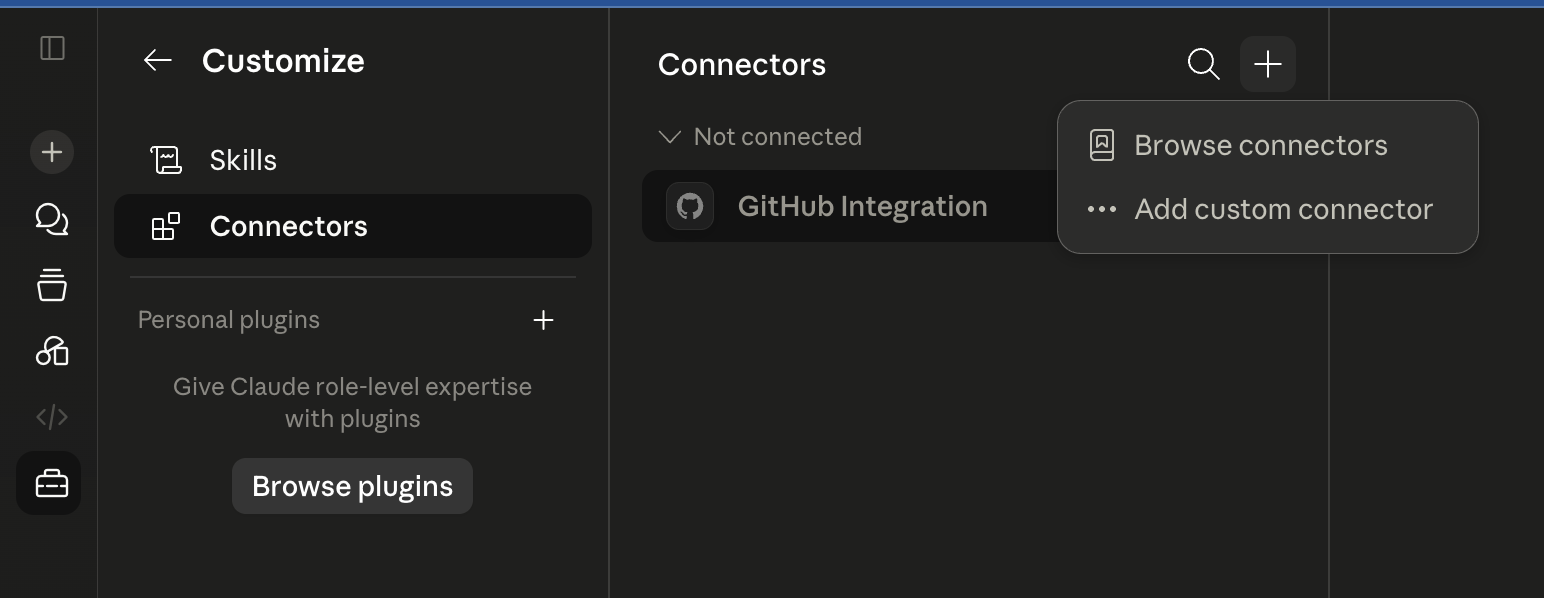
In Claude, go to Settings → Connectors. Click the + button and choose Add custom connector.
2. Add the Karla server#
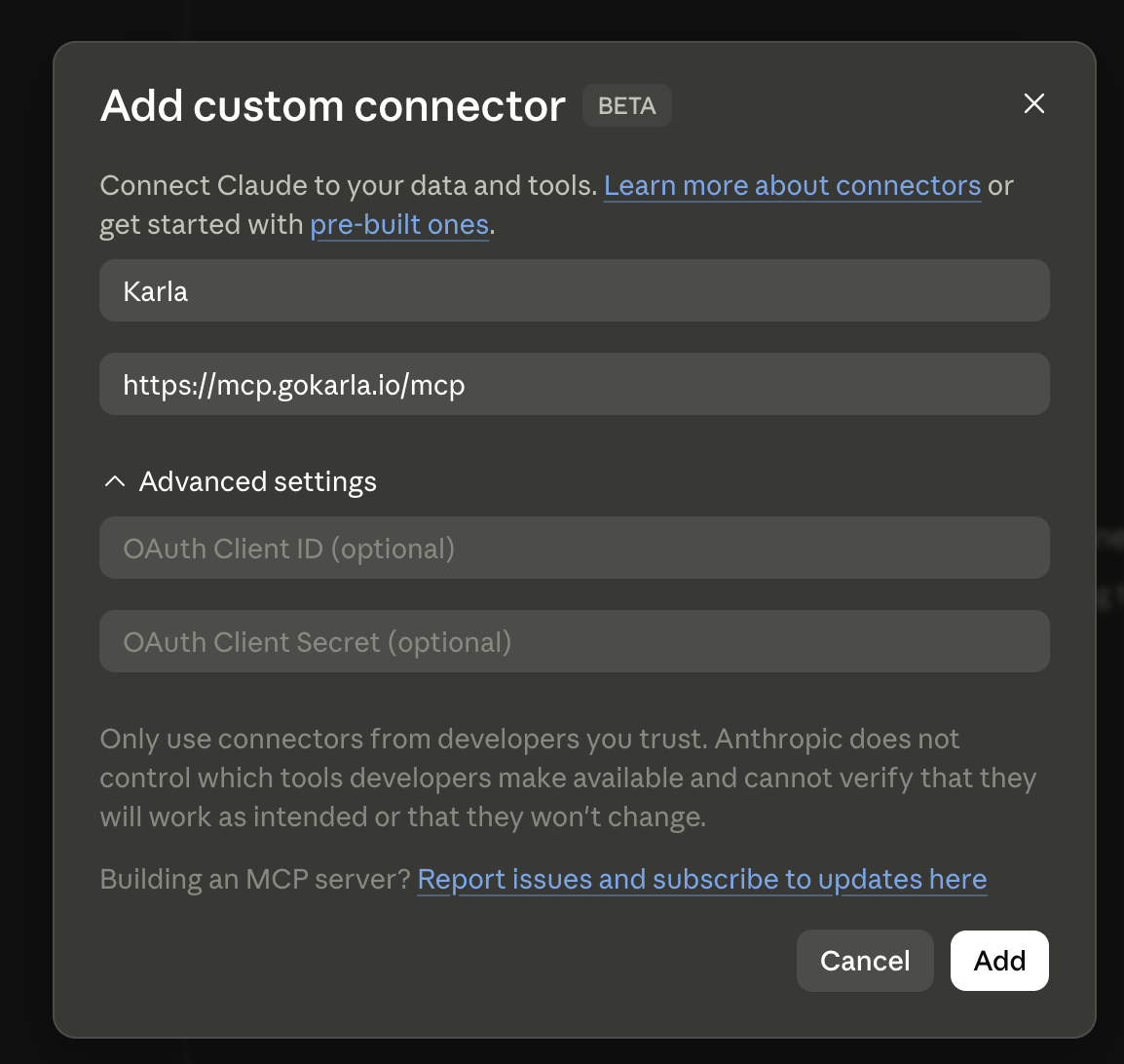
Give the connector a name (for example, Karla) and paste the Karla MCP server URL:
https://mcp.gokarla.io/mcpLeave the OAuth Client ID and Client Secret fields empty under Advanced settings — Karla sets these up for you. Click Add.
3. Connect and sign in#
The connector now appears as not connected. Click Connect to start sign-in.

Claude opens the Karla sign-in page. Sign in with Google or Microsoft and approve the connection on the consent screen. The consent screen tells you exactly what Karla will share — read-only business data for the shops you're authorized for, with customer contact details masked.
4. Review tool permissions#
Once connected, Karla's tools appear under Tool permissions. Because every Karla tool is read-only, you can safely set them to Always allow so Claude doesn't ask for approval on each call — or leave them on Needs approval if you prefer to confirm every query.

5. Start querying#
You're ready. Start by discovering your access, then ask away:
"What shops can I access?"
"Show me orders from the last 7 days."
"Look up the delivery events for tracking number TRACK123."
See the MCP overview for the full list of tools and more example prompts.
Disconnecting#
To revoke access, open the connector and choose Disconnect, or remove the connector entirely. You can reconnect any time by signing in again.